

Getting Started with Facebook
Walk through creating an account, finding friends, and understanding what you're seeing in your feed.
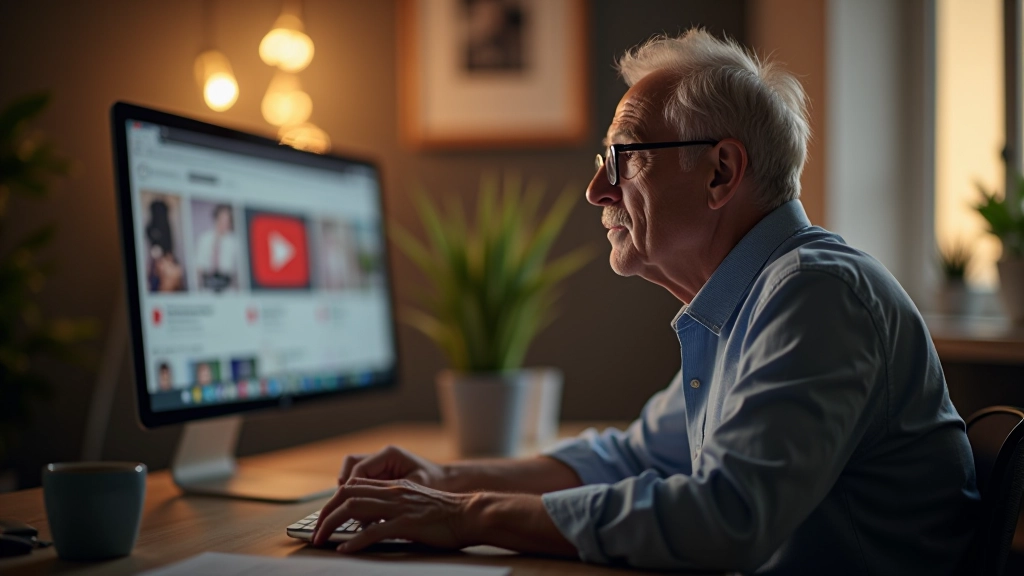
Find channels you love, subscribe without missing updates, and learn why recommendations work the way they do. Everything explained step-by-step.

Author
Written by the bestratedgardentools editorial team, focused on practical, easy-to-follow guidance for social media learners over forty.
YouTube's got millions of channels, which is amazing but also overwhelming. The good news? You don't need to understand everything at once. Start by thinking about what actually interests you. Are you into cooking? Travel? Gardening? Maybe learning languages? Whatever it is, YouTube probably has channels dedicated to it.
The search bar at the top is your best friend. Type in what you're looking for — be specific. Instead of just "cooking," try "simple cooking for beginners" or "Mediterranean recipes." You'll get better results that way. When you find a channel that looks interesting, spend a few minutes watching. Don't feel pressured to subscribe immediately. Watch a couple of videos first. Does the creator's voice work for you? Is the pacing comfortable? Are the explanations clear?
One thing people often miss: YouTube has recommendations built into the homepage. When you log in, you'll see suggested videos. These aren't random. They're based on what YouTube thinks you'll like based on your watching history. So the more you watch, the better these suggestions become.
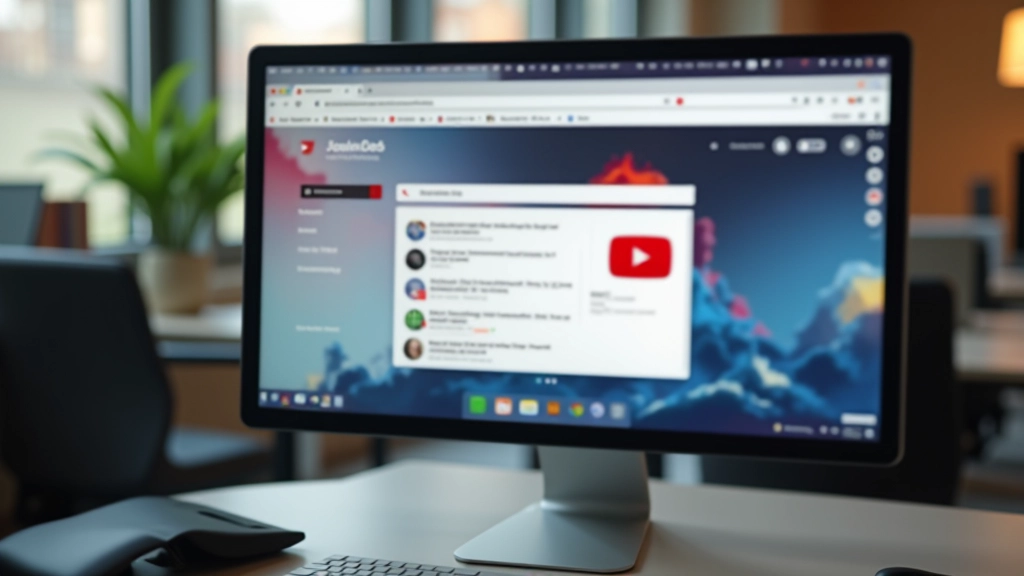
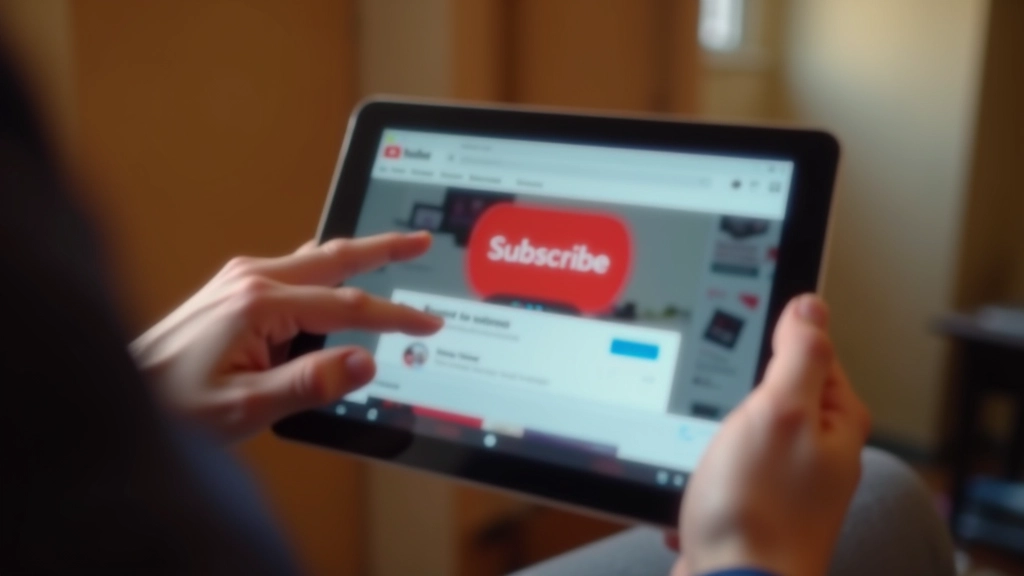
Here's where subscribing comes in. When you subscribe to a channel, you're telling YouTube "I want to see more from this creator." It's that simple. The red Subscribe button is usually in the top-right corner of any channel page. Click it once and you're subscribed. That's it.
So what actually happens when you subscribe? The creator's new videos start appearing in your subscription feed. Instead of hunting through YouTube to find their content, it comes to you. Your subscription feed is like a personalized library of everything you've chosen to follow. You'll see new uploads in chronological order, most recent first.
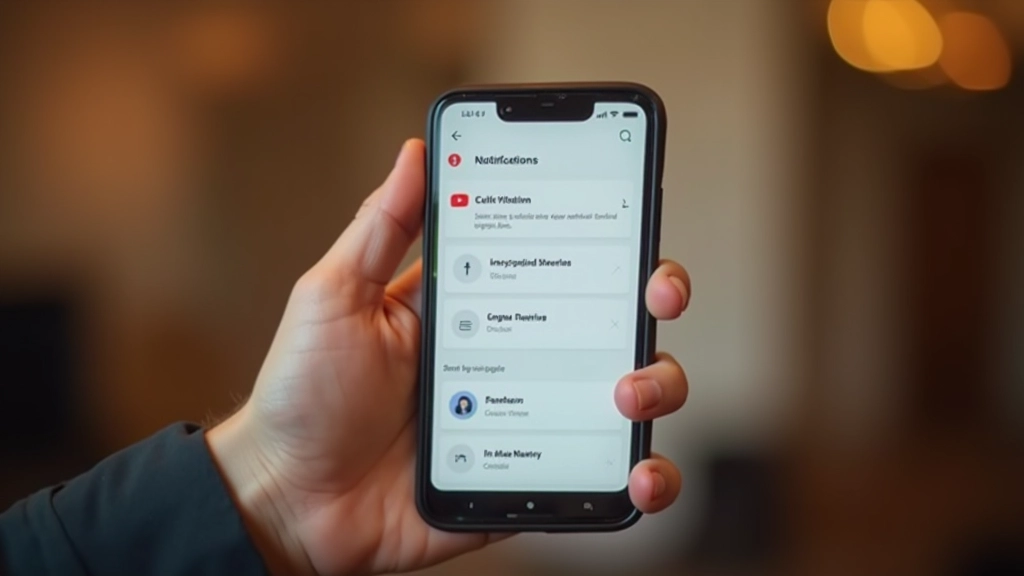
You can also turn on notifications for specific channels if you want. That little bell icon next to the Subscribe button? Click it and you'll get a notification when that creator uploads something new. Helpful if you don't want to miss important videos, but honestly, most people just check their subscription feed regularly without notifications.
Your subscription feed is one of the three main sections of YouTube (the others are Home and Trending). Click the "Subscriptions" link on the left side of your screen and you'll see every video from every channel you're subscribed to, organized by date. The newest uploads appear at the top.
Now, about notifications. You've got options here. You can turn on notifications for all uploads from a channel, just for premiere events (live streams), or turn them off completely. This is actually really useful if you follow channels that upload constantly. You don't want your phone buzzing every single time someone posts. But for channels you absolutely don't want to miss? Turn on notifications.
Pro tip: You can unsubscribe from a channel just as easily as you subscribed. Click Subscribe again and it'll change to "Subscribe." No judgment, no permanent commitment. Your subscriptions are entirely yours to manage.
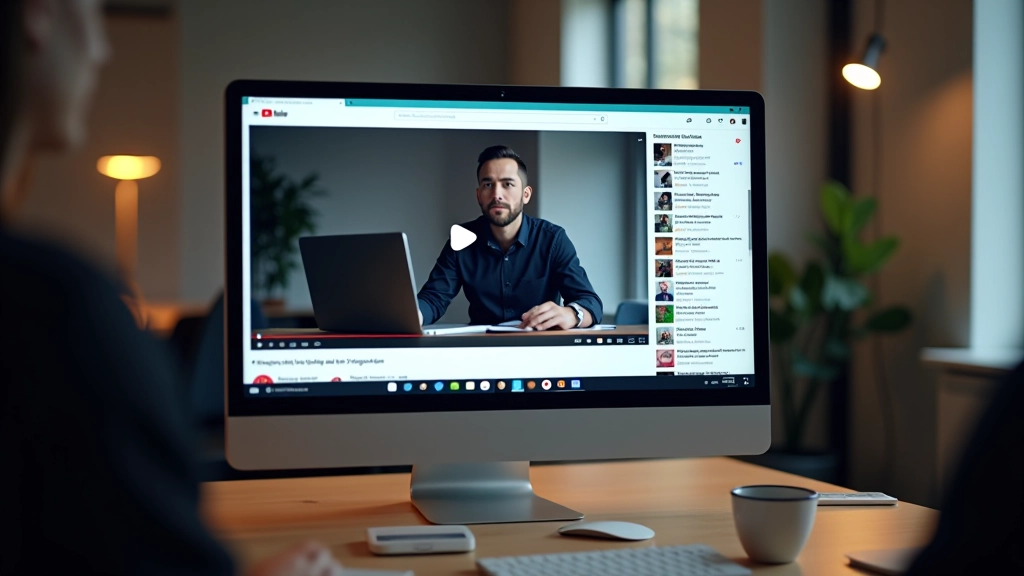
You've probably noticed that when you're watching a video, there's a list of recommended videos on the right side (on desktop) or below (on mobile). These aren't random suggestions. YouTube's algorithm watches what you click, how long you watch videos, which ones you like, and which ones you skip. Then it learns your preferences.
This gets smarter the more you use YouTube. After you've watched a few cooking videos, YouTube starts showing you more cooking content. After you've watched travel vlogs from a few creators, it recommends similar channels. It's actually pretty good at it, though it's not perfect. Sometimes you'll see recommendations that don't make sense. That's normal.
The key thing to know? You're in control. If a recommendation is completely off-base, you can hover over it and click the three dots to tell YouTube "I'm not interested." This helps train the algorithm further. Over time, your recommendations become more accurate and more personalized to what you actually want to watch.
After you've subscribed to a handful of channels, you might want to organize them. YouTube lets you create playlists and collections to keep things neat. A playlist is basically a custom list of videos. You can create one for "Gardening Tips," another for "Travel Inspiration," another for "Cooking Tutorials." Whatever makes sense for you.
To create a playlist, click on a video and look for the "Save" option or the three-dot menu. You can add it to an existing playlist or create a new one. This is genuinely useful if you're learning something step-by-step. You can build a playlist in order and work through it methodically.
Collections are a bit different. They're more like folders for channels themselves, not individual videos. You might have a collection called "Fitness Channels" or "Learning Languages" and organize your subscriptions within them. It's a nice way to keep things tidy if you follow a lot of channels.
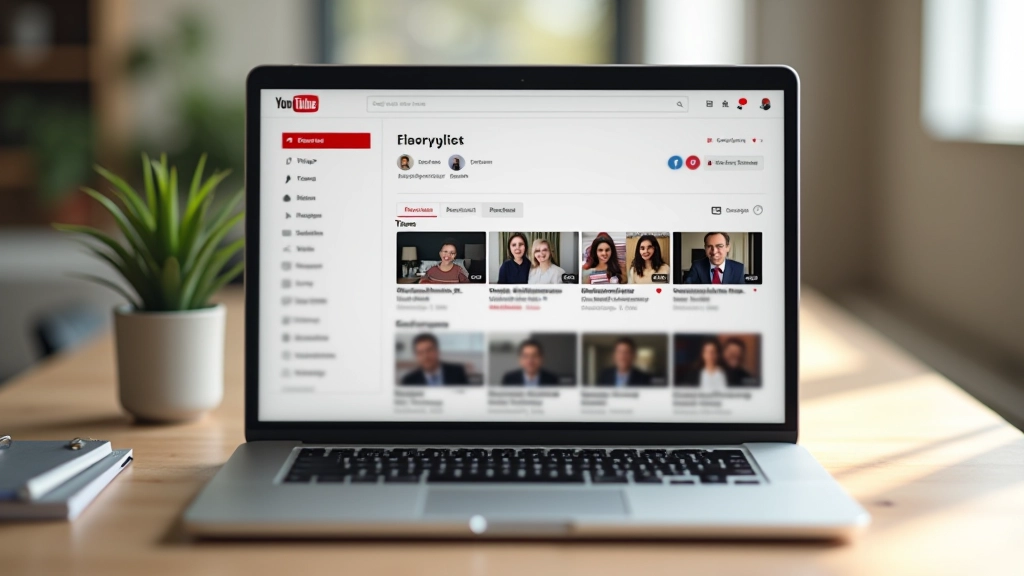
YouTube can feel confusing at first, but the core mechanics are straightforward. You find channels you like, you subscribe to them, and their new videos show up in your subscription feed. Notifications keep you in the loop if you want them. Recommendations help you discover new content. And playlists help you organize everything.
The best part? It's all optional. You're never forced to do anything. Don't like notifications? Don't turn them on. Don't want recommendations? You can adjust your settings. YouTube works at your pace. Start by finding one channel about something you genuinely care about. Watch a few videos. Subscribe if you like it. Then explore from there. That's it. You're using YouTube.
Individual learning outcomes vary from person to person. This guide provides educational information about how YouTube works and how to use its core features. YouTube's features, interface, and functionality may change over time. Always check the platform directly for the most current information about how to use specific features.
Walk through creating an account, finding friends, and understanding what you're seeing in your feed.
Upload photos, add captions that people will actually see, and discover why hashtags matter.
Learn how to write posts that people will see, comment respectfully, and protect your personal information.